
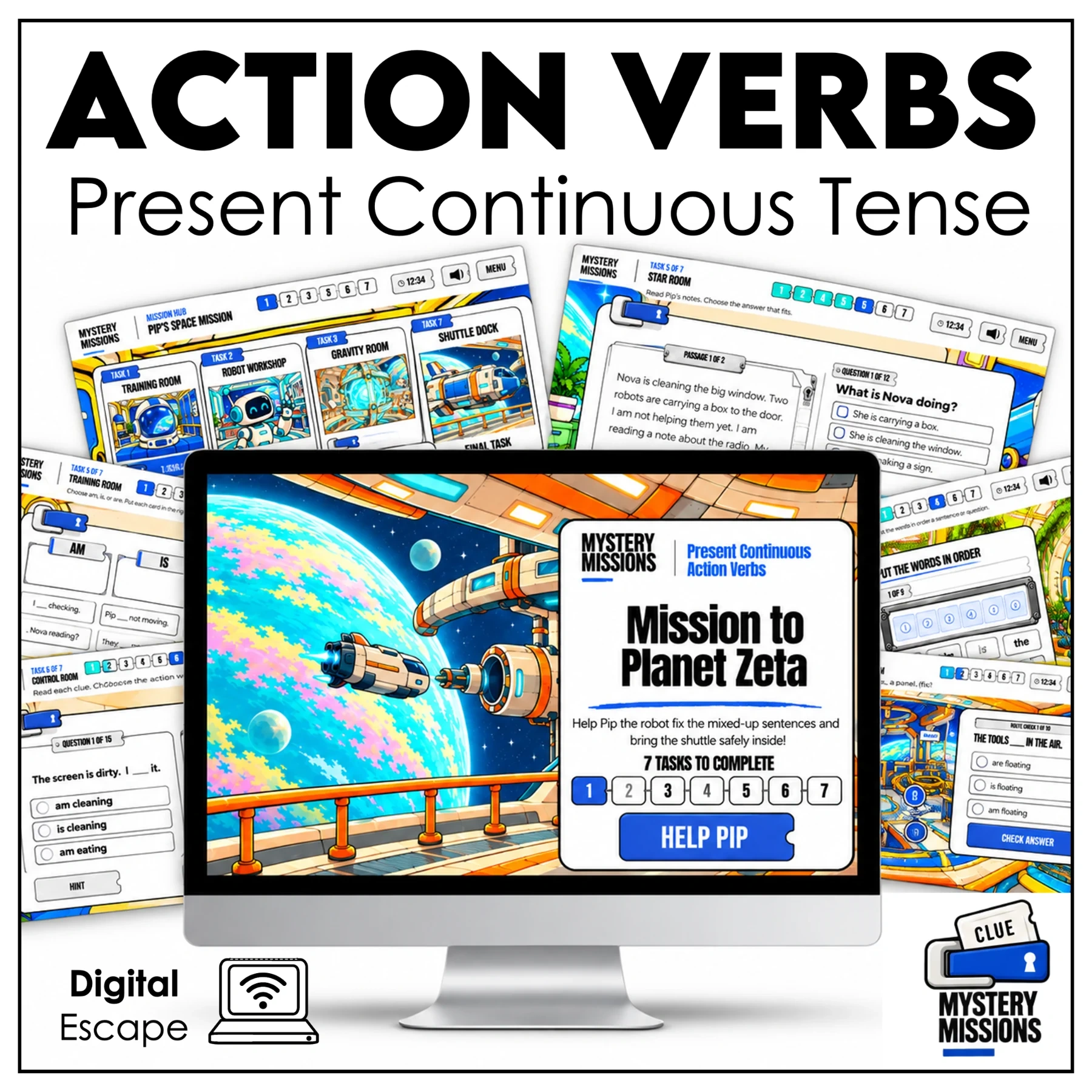
Present Continuous Action Verbs
Mission to Planet Zeta
Present continuous tense / action verbs
By Hot Chocolate Teachables
Help Pip fix mixed-up activity reports and guide the supply shuttle safely to its bay.
Purchase on your preferred shop. Activate here with the code in your PDF.
Already purchased? Activate your mission →
A little mystery. A clear purpose.
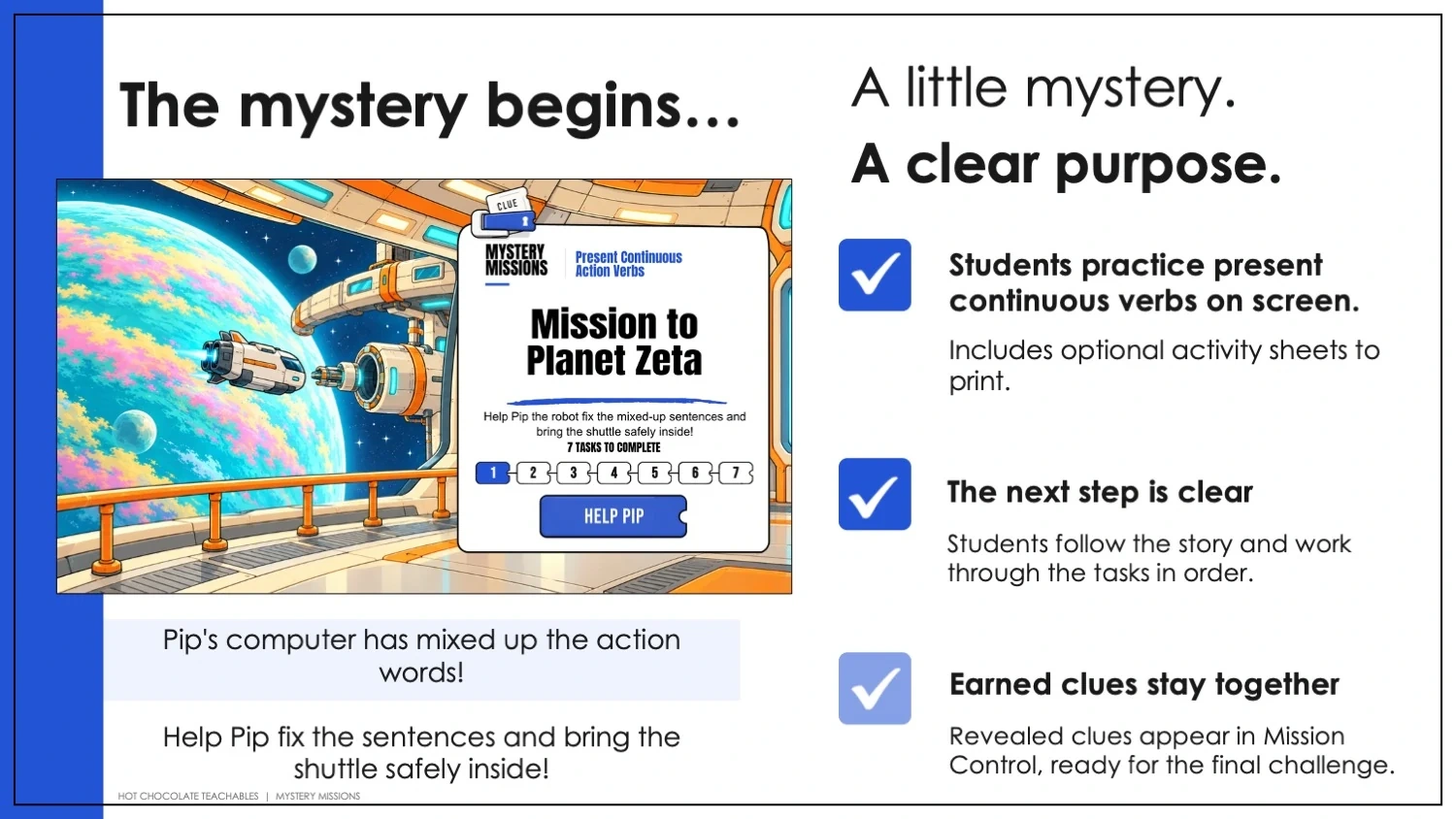
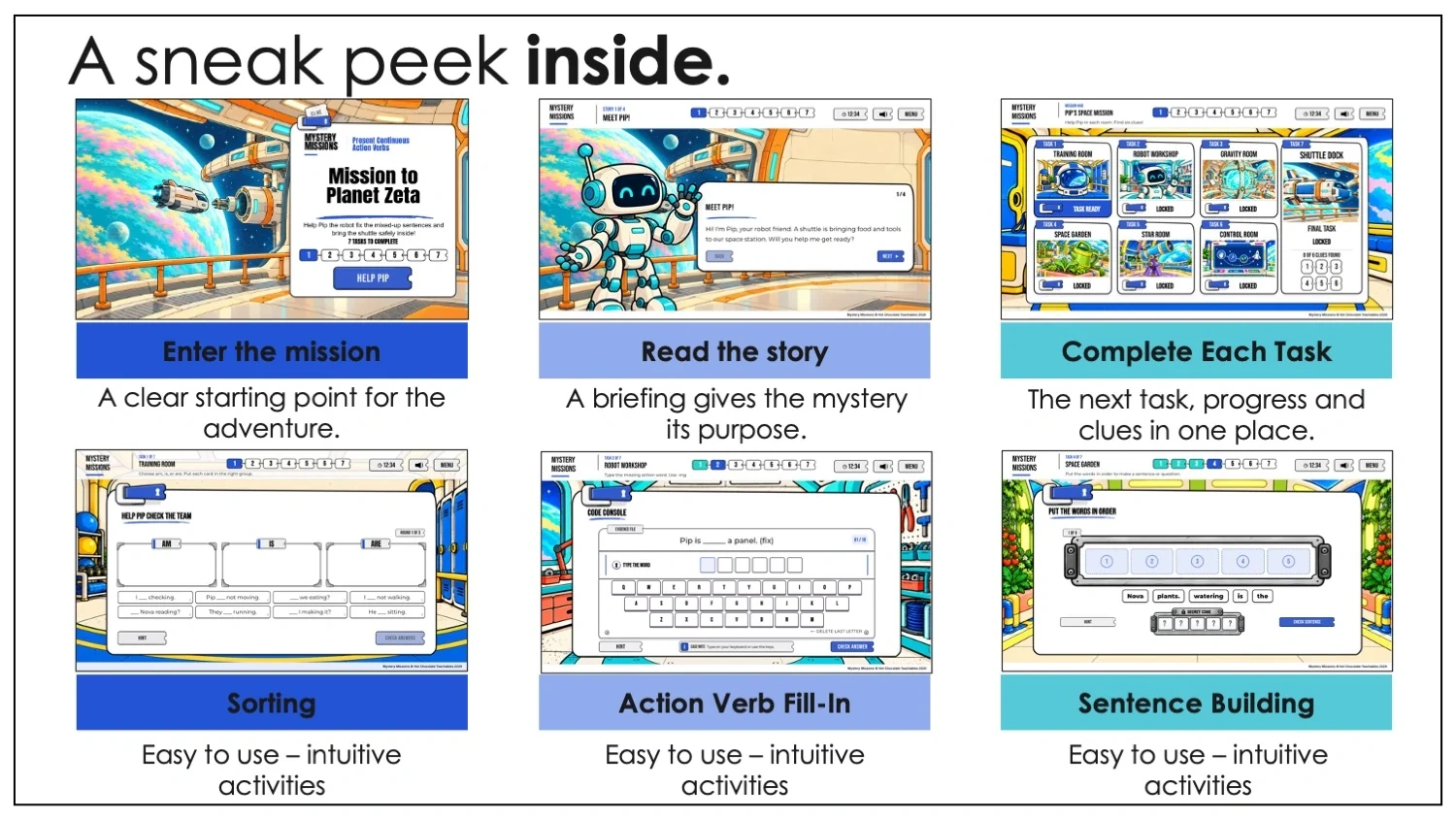
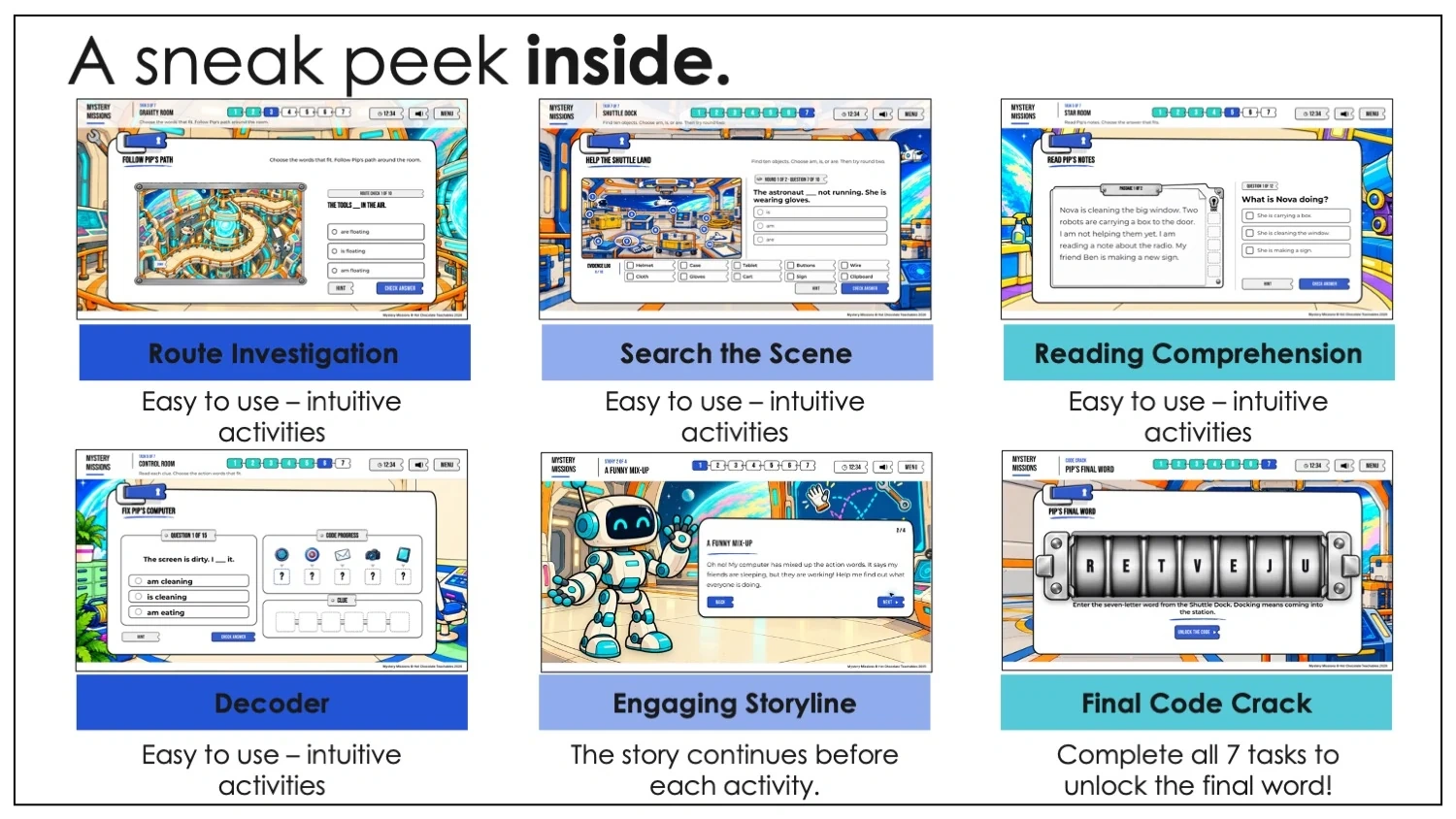
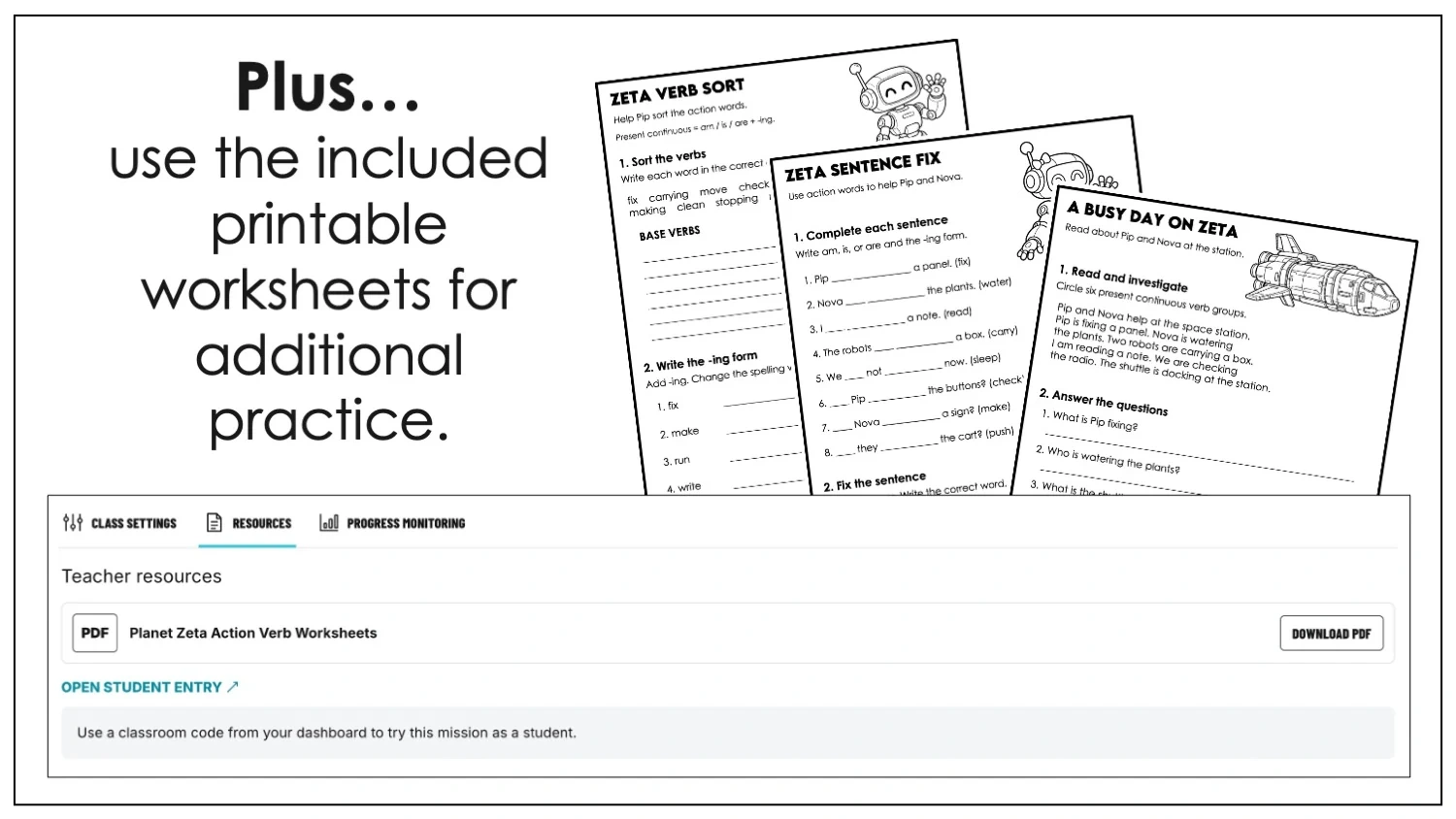
Make practicing present continuous verbs a space adventure! Mission to Planet Zeta is an interactive digital grammar mystery for Grades 2–4. Students join Pip and his friend Nova at a colorful space station, fix mixed-up action sentences, collect clues, and help a supply shuttle dock safely. Across seven interactive challenges, students use am, is, and are with verbs ending in -ing to describe actions happening now. They practice affirmative statements, negatives, and questions, alongside spelling changes such as make → making and run → running. The present continuous, also called the present progressive, becomes part of a story with a clear purpose. Students explore the Training Room, Robot Workshop, Gravity Room, Space Garden, Star Room, and Control Room before the final Shuttle Dock activity. Activities include sorting sentences by am, is, and are; typing missing action words; choosing answers along a route; putting words in order; reading short passages; decoding clues; and searching an illustrated scene. Collected clues lead to a final code challenge. Three optional printable present continuous worksheets with an answer key provide extra practice. Students sort base verbs and -ing forms, complete and correct sentences, read about Pip and Nova, and write sentences using verbs from the mission. Teachers activate the mission using the activation code supplied with their purchase and verify their teacher email. From the teacher dashboard, they generate a classroom code, monitor student progress, access resources, and choose an optional time limit. Students join with a classroom code and a nickname or team name; no student email account is required. Allow about 35 minutes, depending on reading level and pace. Use a desktop computer, laptop, Chromebook, or tablet in landscape with an internet connection. Teachers can also lead a shared activity on a smartboard or interactive whiteboard connected to a compatible computer. Gameplay is not designed for phones. Suggested grades are a starting point: suitability varies with reading ability, language level, and individual learning needs, including ESL and special education settings. Coming soon: explore the real mission screenshots and worksheet previews now. Purchase links will be added when the mission is available for sale.
Skills students practice
- Present continuous / present progressive tense
- Am, is, and are + -ing
- Affirmative and negative sentences
- Present continuous questions
- -ing spelling changes
- Reading comprehension
- Sentence building and following clues
What’s included
- 7 interactive grammar challenges
- Space-station storyline with Pip and Nova
- Illustrated clue discoveries and a final code challenge
- 3 optional printable practice worksheets and answer key
- Teacher dashboard and classroom codes
- Progress monitoring and optional time limit
How students play
- Enter your classroom code
- Choose a nickname
- Complete challenges and collect clues
- Solve the final mystery
A peek inside the mission
Good to know
What do students do in a Mystery Mission?
Students enter a story-driven adventure, follow the mission instructions, complete learning challenges, and collect clues. They use those clues to solve the final mystery and reveal the ending. The subject, story, activities, and number of challenges vary by mission, so check the listing's skills, description, and preview images.
How do I choose the right mission for my students?
Search by skill, topic, theme, or grade, then review the learning skills and real activity images. Grade bands are a guide, not a guarantee of suitability for every learner. Consider reading ability, familiarity with the target skill, and how much teacher support your class will need. Partners or teacher-led play may be useful for students who benefit from discussion or reading support.
Age range & learner needs
Suggested age and grade ranges are a starting point. The best fit can vary considerably depending on your students' reading level, language proficiency, learning goals, and support needs. A mission may be useful for native English speakers, English language learners (ESL), or students receiving special education support. Depending on the particular mission and the skills being practiced, suitable learners may range from elementary students to young teens. Review the vocabulary, reading demands, activity previews, and theme to decide whether the content is age-appropriate and a good match for your students. You know your learners best; a grade label does not need to be the only factor in your choice.
Is the mission a PDF or an online activity?
The mission itself is an interactive activity played in the Mystery Missions website. Your purchase PDF provides the activation information; it is not the digital game. Any included printable worksheets are additional resources. Purchases are completed through the seller's linked shop, while activation, classroom management, and gameplay take place on the platform.
What devices can we use?
Use a desktop computer, laptop, Chromebook, or compatible tablet in landscape with an up-to-date browser. The gameplay browser window must be at least 960 × 560 pixels. Maximize the window or hide browser toolbars if needed. Phones are not supported for gameplay. Test your classroom devices before the lesson.
Can I use a smartboard or interactive whiteboard?
Yes—for teacher-led, whole-class, or team play, display the mission from a compatible computer connected to your smartboard, interactive whiteboard, or projector. Students can discuss answers and take turns interacting. Touch input depends on your board and browser; keep a mouse or trackpad available. A board's built-in browser may behave differently, so test it first and use a connected computer if needed. One shared screen runs one player or team session; use separate devices and nicknames for separate student sessions.
Do we need internet access or an app download?
Mystery Missions runs in a web browser. No separate app installation is required. A reliable internet connection is needed to load the mission, access artwork and audio, and communicate with the platform. Missions are not designed for offline play. School networks may need to allow the mission website and its supporting services.
How do I activate my purchase?
Download and open the PDF from the shop where you purchased the mission. Find its activation code and activation-page address. Enter the activation code with your teacher email, then verify your email using the sign-in code. The mission is added to that teacher account. Use the same email for future purchases so your missions stay together in one dashboard. Your purchase activation code is for you; students use a separate classroom code.
How do students join?
Open your teacher dashboard, select the activated mission, and generate a classroom code. Share the student-page address shown for that mission and the six-digit classroom code. Students enter the code and choose a nickname or team name. They do not need student email accounts. Use nicknames rather than students' full names.
How long does a classroom code last?
A classroom code is normally valid for 72 hours from the moment you create it—not from the first student's visit. Create it close to your planned lesson. After it expires, generate another code for a new class session. A new code starts a new session; previous student progress does not transfer automatically. Classroom-code expiry does not remove the mission from your teacher account.
Can students stop and return later?
Students can resume an unfinished mission while their classroom code and session remain valid, using the same browser and device with its saved session information. Follow the mission's nickname and continue prompts. Private browsing, clearing browser storage, changing devices, or switching website domains can prevent that saved session from being found. On shared devices, follow your school's procedures and check which player is active before continuing.
Can I use the mission again for another lesson?
Yes—generate a new classroom code when you want a fresh session for a class you teach. You do not need to reactivate the purchase simply because a classroom code expires. A new code starts separate student sessions; previous answers and progress are not copied into the new session. Keep using the teacher email associated with the activated purchase.
Can students work individually, with a partner, or in teams?
You can organize play around your lesson: individual devices, partners sharing a device, teams, or teacher-led play on a shared screen. Use a distinct nickname or team name for each session. When students share one session, its saved progress represents that player or team rather than a separate result for each student.
Can I monitor progress?
The teacher dashboard includes a progress-tracking choice for classroom sessions. When tracking is enabled, you can review recorded student or team progress and completion. When it is off, the dashboard does not provide the same named progress report. The standard progress-review window ends seven days after the classroom code expires; expired server-side student progress is removed by scheduled daily cleanup. This is separate from locally saved browser information.
Is there a time limit?
A teacher can enable an optional mission timer in the dashboard. You can also play without a time limit. Available time-extension controls depend on the classroom settings you choose. The estimated duration in a listing is a guide; actual time varies with reading level, group discussion, and how students work through the activities.
Do students need sound or headphones?
Missions can include music, sound effects, or narration. Available audio depends on the mission and its settings. Students can adjust the sound controls; headphones can be useful when several devices are playing in the same room. Browsers may require a click or tap before sound starts. Check the individual listing for any audio-specific requirements.
Are worksheets or other downloads included?
Check the What's included section of each product page. Resources vary by mission. When a purchase includes worksheets or other teacher resources, open that mission in your teacher dashboard and look in Resources. Printing is optional unless the individual listing says otherwise. You do not need a printed worksheet simply to enter a digital mission.
Can I use my purchase with more than one class?
One activation license is for one teacher and the classrooms that teacher personally teaches. You can create separate classroom sessions for your own classes. It is not a school-wide or shared-staff license. Other educators need their own licenses. Do not share your purchase PDF, activation code, or teacher sign-in details; share only the classroom code and student-page address with your students.
What should I do if something does not work?
Check the internet connection, device orientation, browser-window size, and that the classroom code is still active. Confirm that students are using the correct student-page address. If audio is silent, click or tap once and check the mission and device volume. Avoid clearing browser storage during active play because it can remove resume information. For an activation or missing-purchase issue, contact the seller through the shop where you purchased. Never include student names, passwords, sign-in codes, or activation codes in an initial support message.
For the full setup guide, visit Instructions & troubleshooting. See our Terms of Use and Privacy Policy for licensing and data information.